ALUMNEXUS
Alumni Tracer Study Platform — User Manual
Table of Contents
1. Introduction
ALUMNEXUS is a web-based Alumni Tracer Study and Job Discovery system built for Eastern Visayas State University. It collects tracer survey responses from alumni, enables alumni-to-alumni messaging, displays batch trends and analytics, and provides admin tools for survey management, reporting and audits.
Audience: Alumni, Program Administrators, Accreditation Staff, IT Support
2. System Overview
The system supports two primary roles:
- Alumni — receive survey links, submit surveys, receive account credentials, log in, update survey answers, message other alumni, view batch trends, update profile.
- Admin — create/edit survey questions, manage submissions, review/approve entries, view analytics, access audit trails, print/export results, and manage admin accounts.
- Admin publishes survey questions → Alumni receives survey link → Alumni submits survey → System emails alumni account details.
- Alumni login → can update answers, message peers, view trends; Admin reviews and exports analytics for accreditation.
3. Alumni: Step-by-step
3.1 Receiving the Survey Link
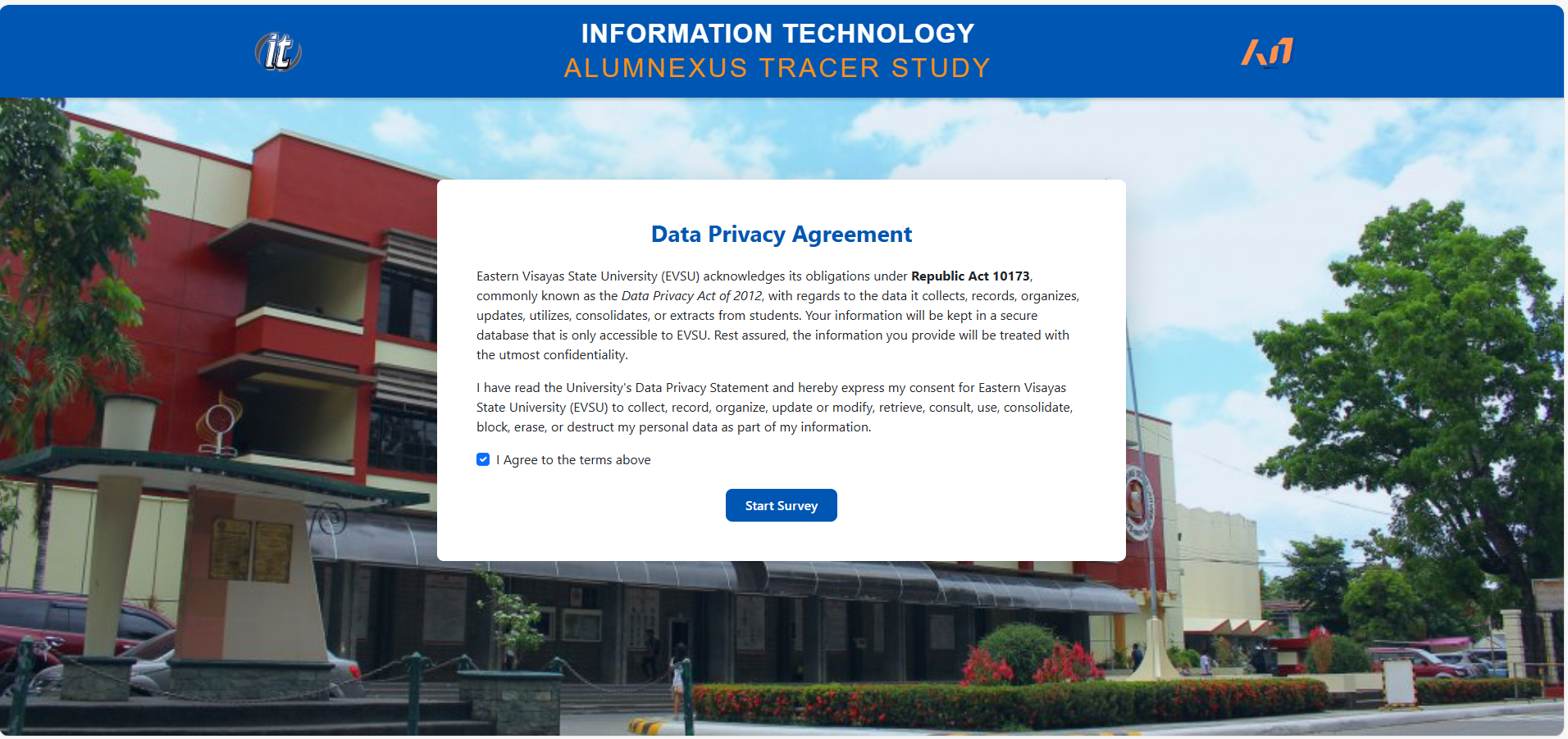
Alumni will be contacted by the university and given a specific survey link via email. The link opens a web form containing the tracer questions.
3.2 Completing and Submitting the Survey
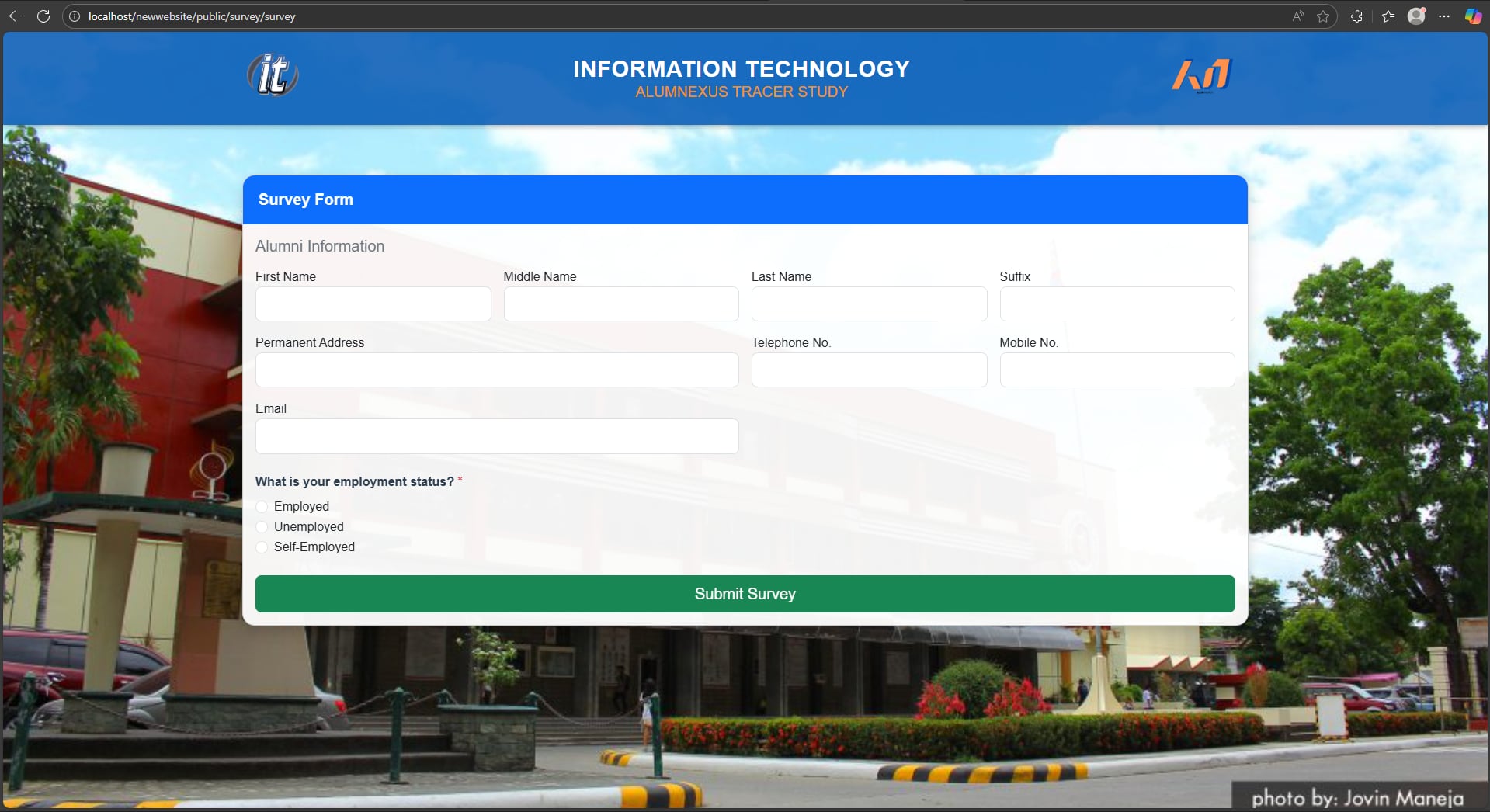
- Open the provided link and answer all required questions.
- Required fields are marked with *. Review your answers before submitting.
- Click Submit. Confirmation message appears indicating successful submission.
3.3 Receiving Login Credentials
After the survey submission the system automatically generates an alumni account and sends an email containing the username and temporary password. Keep this email for your first-time login. You will be prompted to change the temporary password at first login.
3.4 Logging in to the Alumni Portal
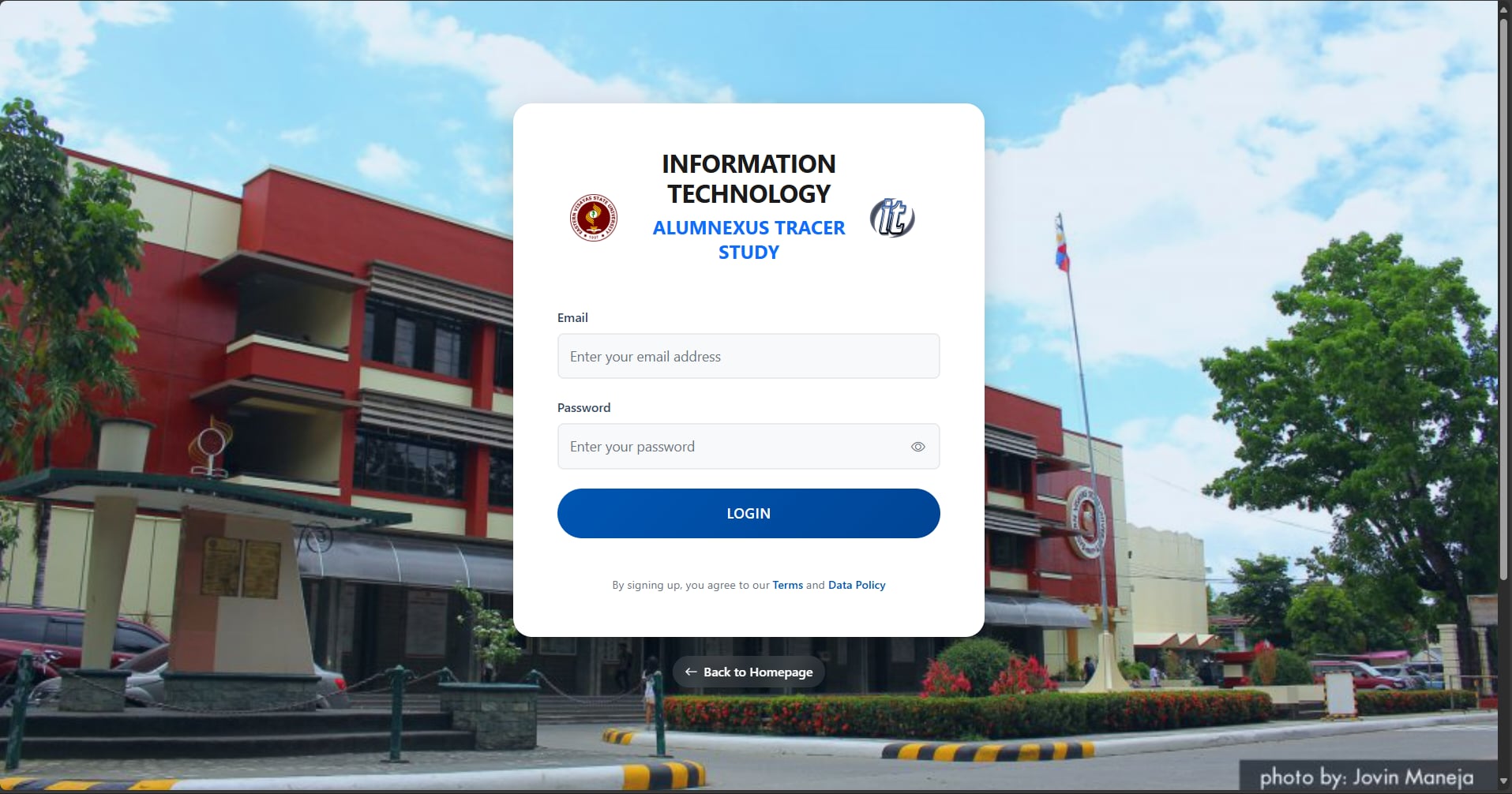
- Open the portal URL provided by the university.
- Click Login, enter email/username and password; then click Sign In.
- If first-time login, follow prompts to reset your password.
3.5 Alumni Dashboard - Features
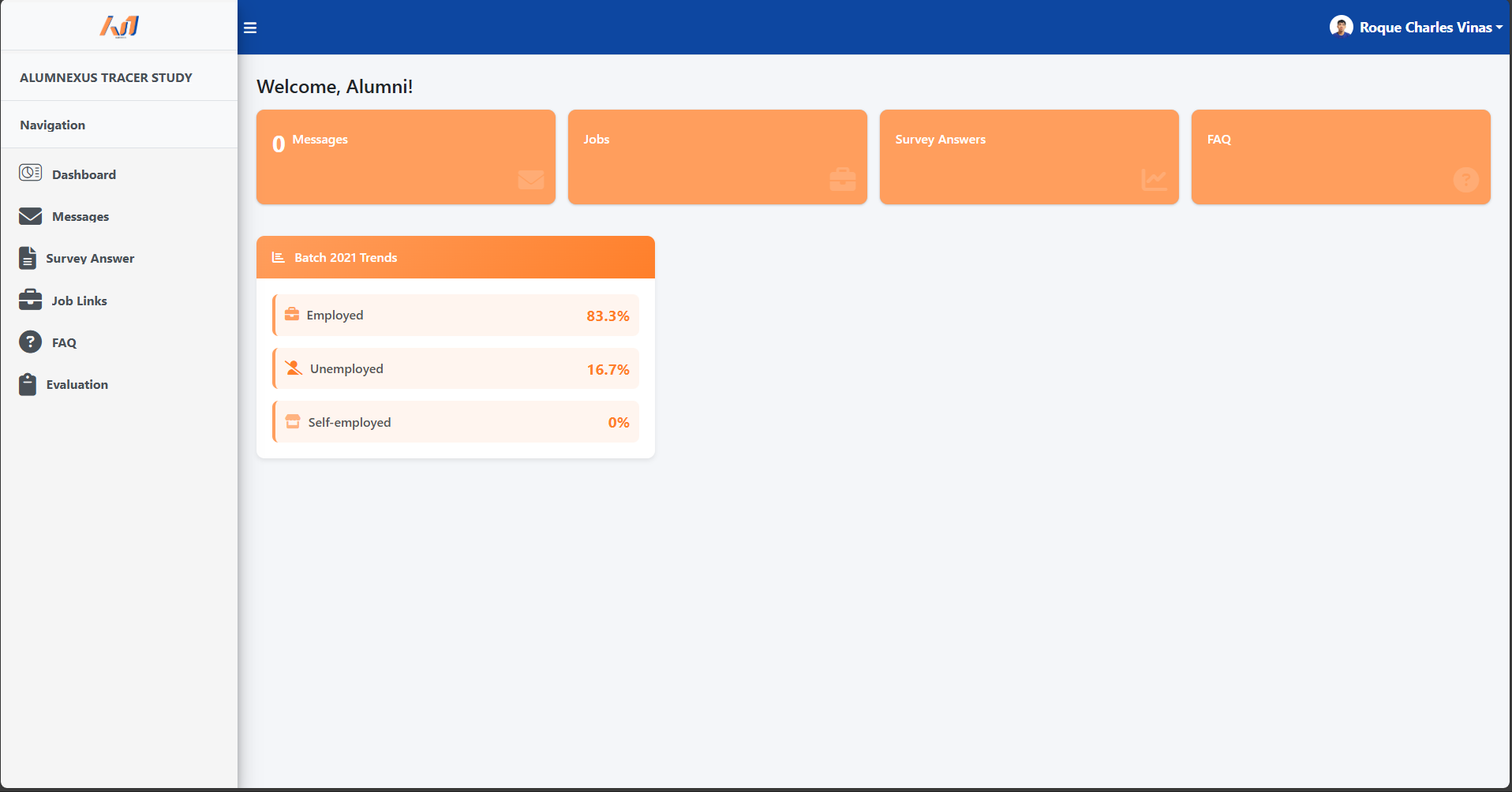
- Update Survey: Edit or add additional information to your previous survey answers. Changes are saved when you click Save.
- Messaging: Search and send connection requests to other alumni. After a connection is accepted you can exchange messages.
- Batch Trend: View aggregated employment/outcome statistics for your graduating batch (charts and tables).
- Profile: Update contact details, employment status, skills, and career goals.
4. Admin: Step-by-step
4.1 Admin Login
Admins use a secure admin portal account. Follow the same login flow as Alumni but ensure you have the Admin role assigned.
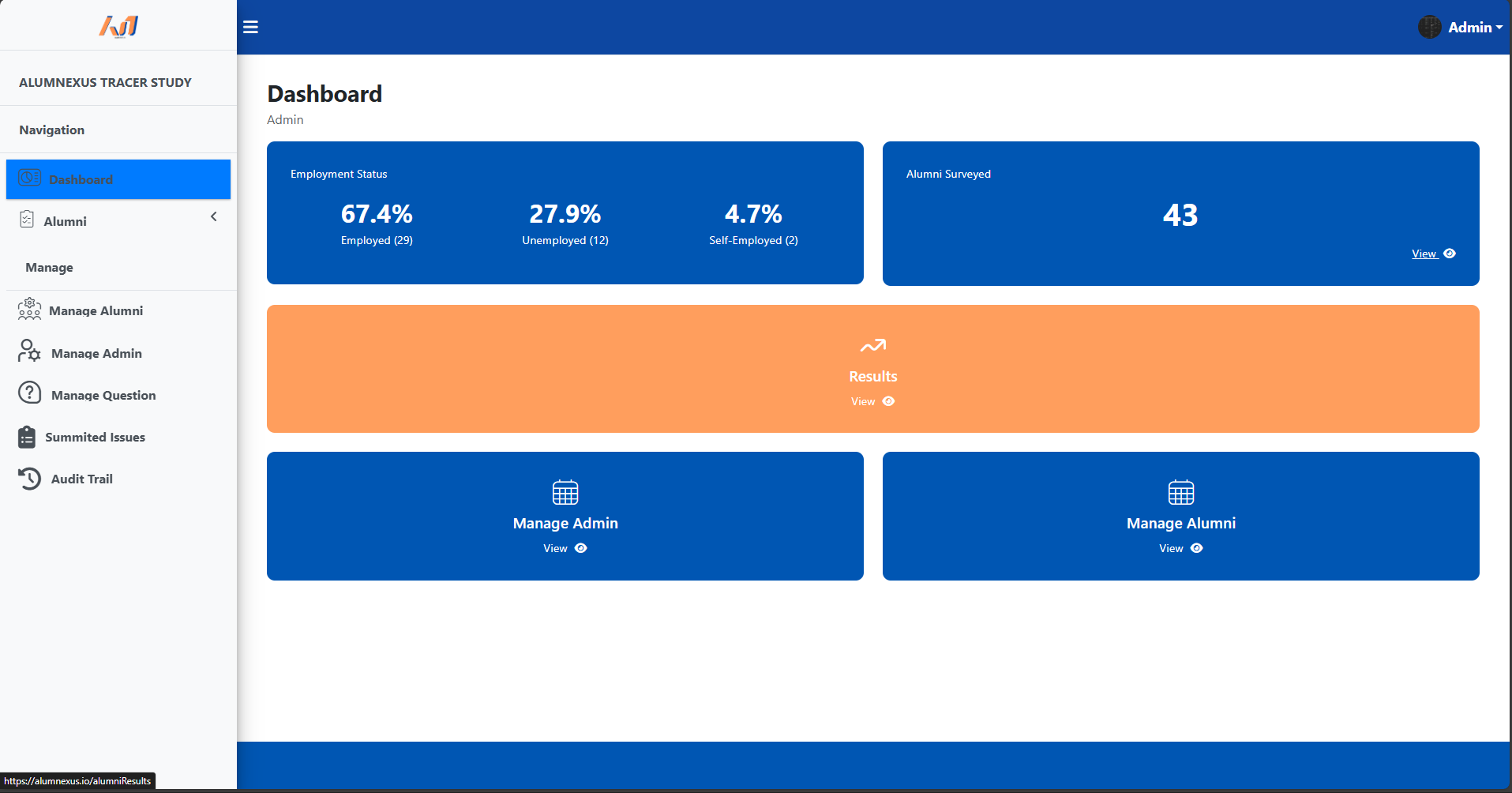
4.2 Managing Survey Questions
Admins can create, edit, reorder, and publish survey questions that alumni will answer.
- Navigate to Survey Management → Questions.
- Click Add Question and choose the question type: text, textarea, radio (single choice), checkbox (multi-choice), dropdown, or numeric.
- Enter question text, optional help text, and possible choices (for choice-based questions).
- Set Required if the question must be answered, then click Save.
- Optionally group questions into sections and publish the survey when ready.
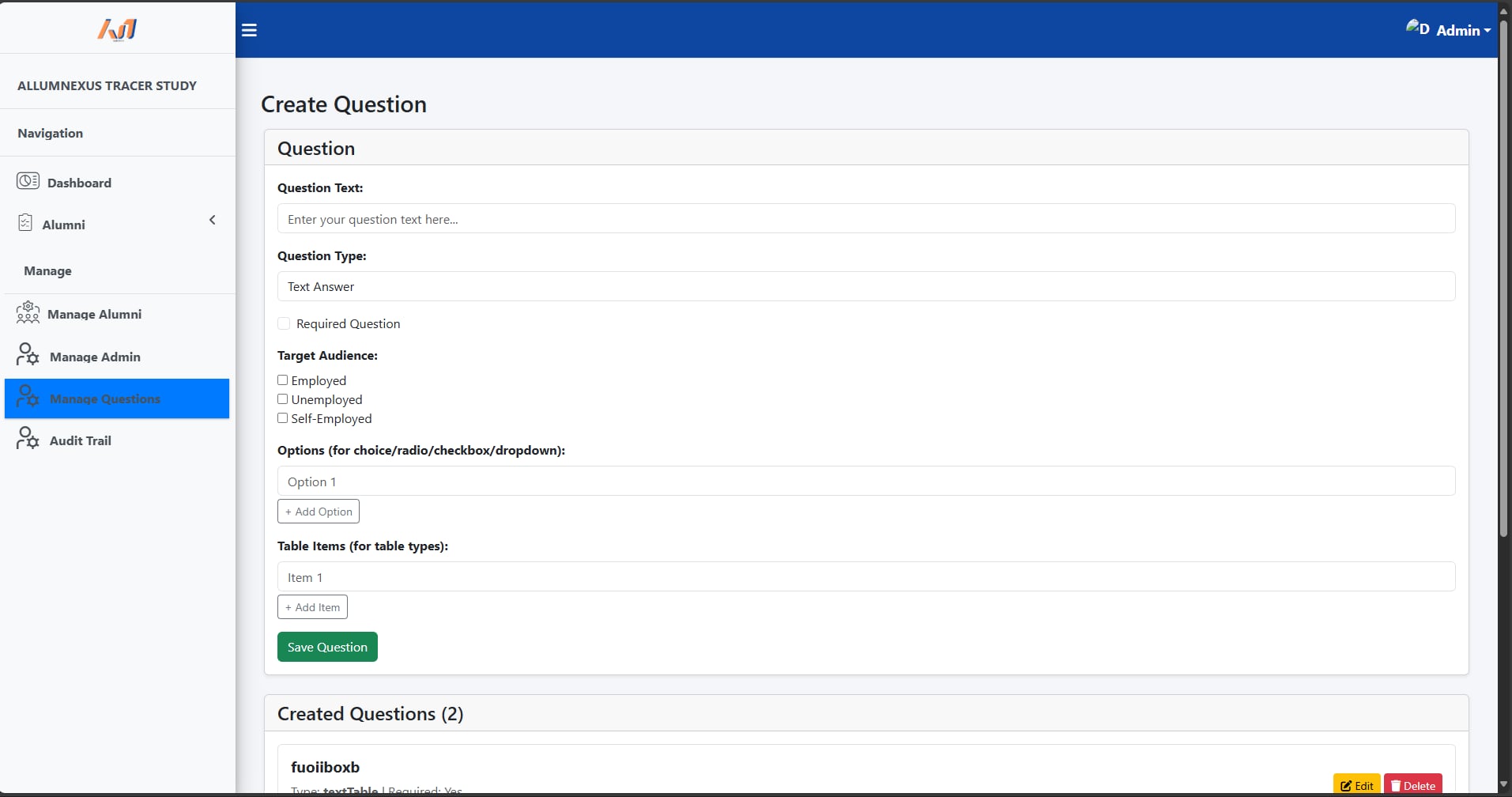
4.3 Handling Alumni Submissions
- Go to Submissions to view newly submitted surveys.
- Review entries, flag incomplete responses, and mark as Verified when validated.
- Use bulk actions to export selected submissions to CSV or PDF.
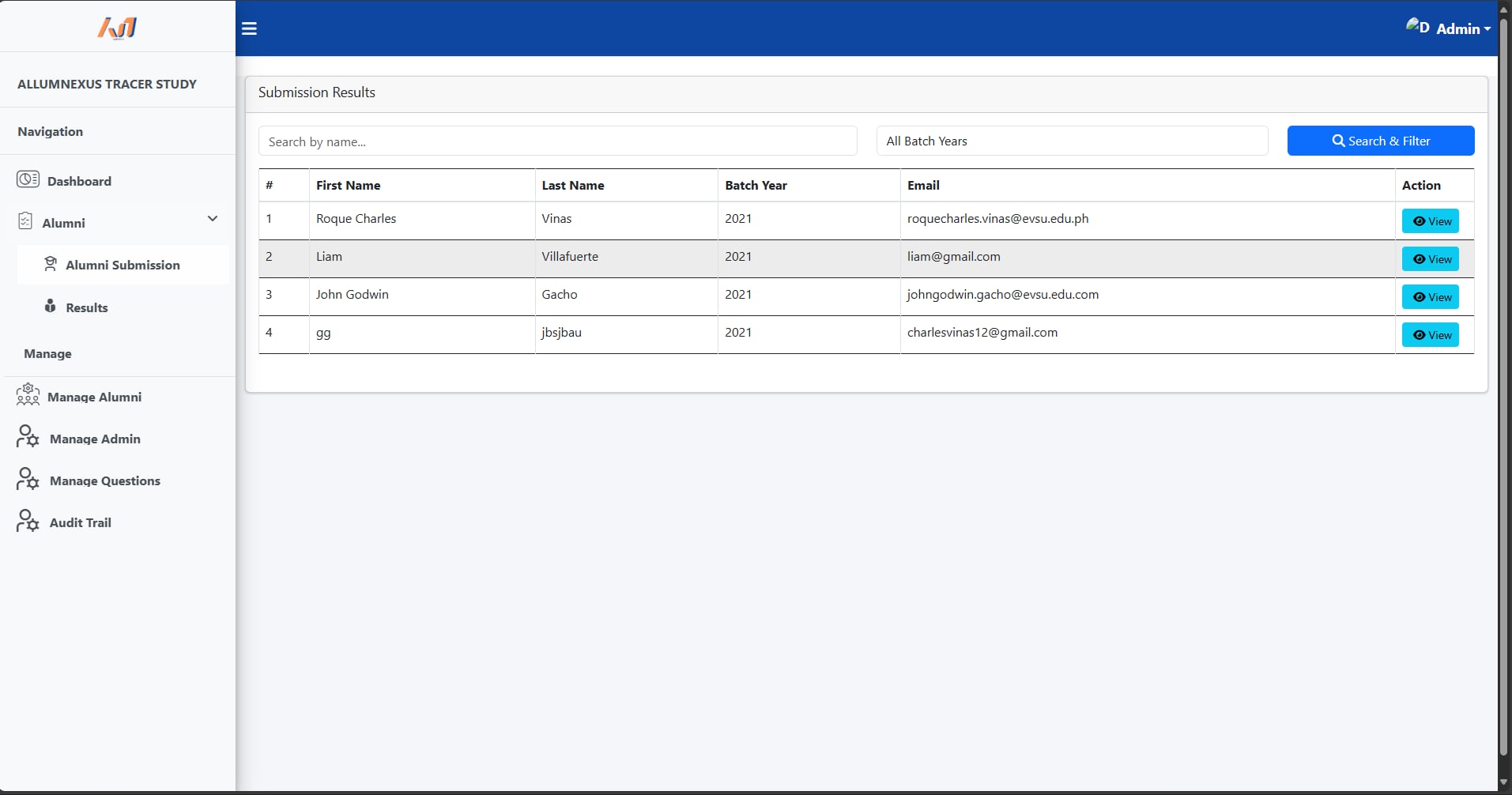
4.4 Analytics & Batch Trends
Use the Analytics module to generate charts and prepared reports for accreditation:
- Choose filters (graduation year, program, employment status)
- Run reports and preview charts. Export charts as images or include them in a printed report.
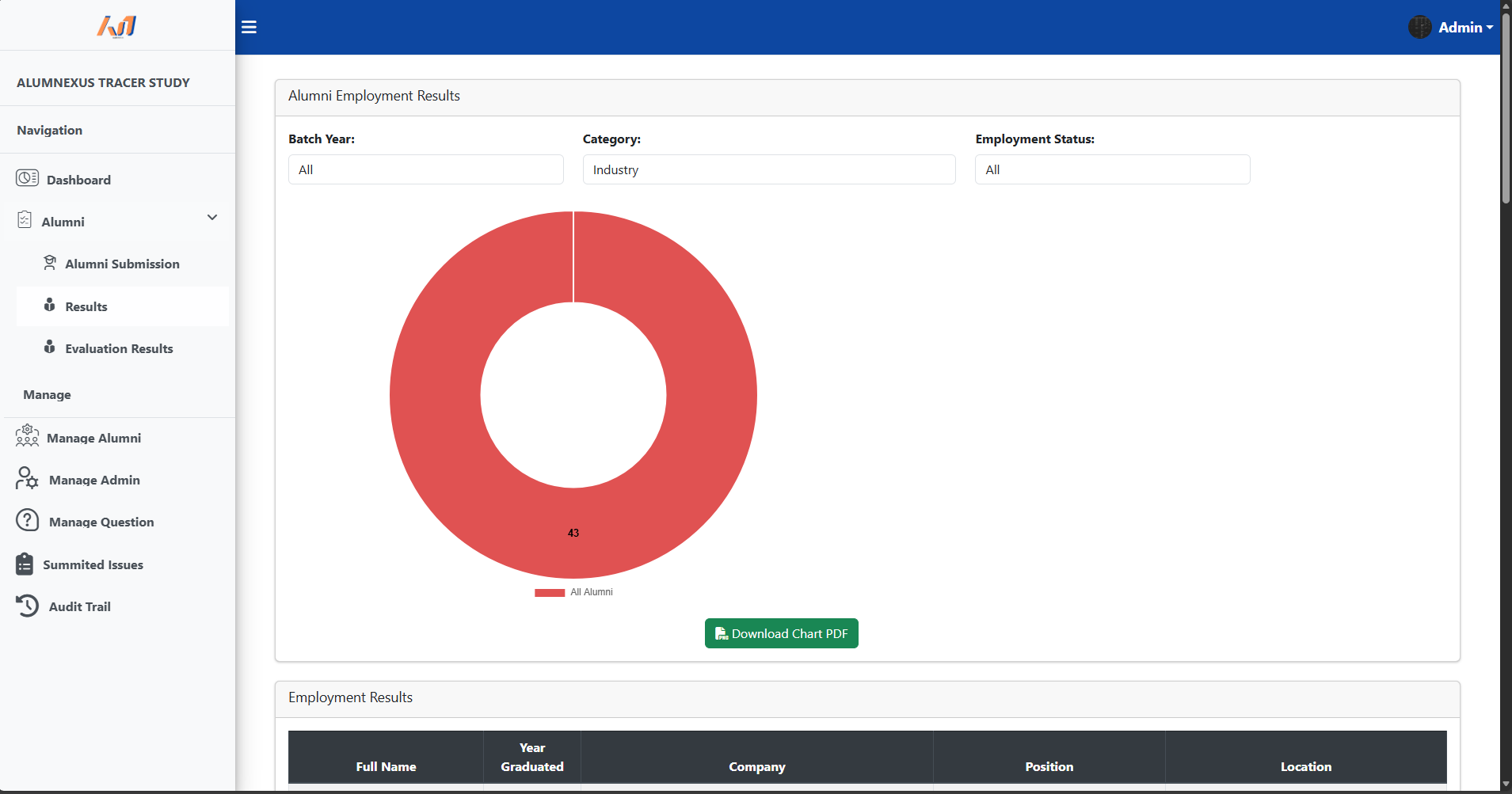
4.5 Audit Trail & Exporting
- Audit trail logs user activity: login events, changes to questions, and data exports.
- Admins can filter the audit log by user, date range, or action type.
- Export full reports (CSV / PDF) for documentation and accreditation.
4.6 Admin Management
Only super-admins may add or remove other admin accounts. Navigate to Admin Management to add new admins, set roles, or revoke access.
4.7 Printing & Official Reports
Reports can be printed directly from the Analytics module — use Export → PDF or the Print button to create official documentation.
5. FAQ & Troubleshooting
I did not receive my account email — what do I do?
Check spam/junk. If not found, contact IT Support. Provide full name, email used on survey, and date of submission.
I forgot my password — how to reset?
From login page click Forgot password and enter your registered email. Follow the reset link sent to your email.
How do I change my profile photo?
Go to Profile → Edit → Upload photo. Acceptable formats: JPG/PNG, max 2MB.
How do admins publish a new survey?
Admin → Survey Management → New Survey → Add Questions → Publish. Published surveys generate distribution links.
Can alumni change their submitted answers?
Yes. Alumni can update their survey from the dashboard unless the admin locks submissions for a specific survey/version.
Where can I get printed reports?
Admins can export from Analytics. For official printed reports, use the Print → Save as PDF flow and submit to the accreditation office.
6. Support & Contacts
If you encounter issues or require assistance, contact:
- Email — alumnexus.tracer@gmail.com